 NotchMuse
Seamless integration via macOS Now Playing
NotchMuse reads active playback metadata from the Soda Music Mac desktop app through macOS system-level Now Playing / MediaRemote APIs. You do not need unofficial plugins, browser extensions, or injected scripts.
Start a song in Soda Music and NotchMuse follows track changes and playback progress automatically, fetching synced lyrics—including word-timed lines when the lyric source provides them.
Dual display modes: notch companion and clean status bar
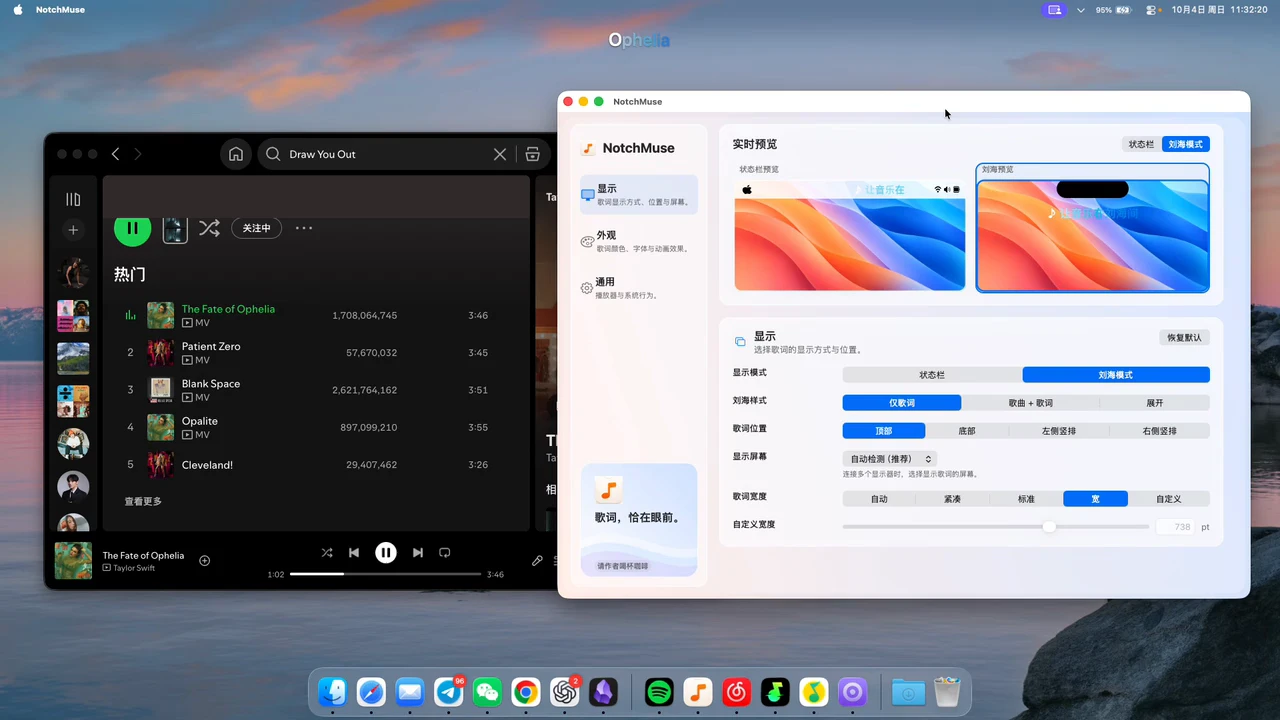
Choose Notch Mode to keep synced lyrics tucked cleanly near the MacBook camera housing or positioned above the Dock. Prefer a minimal footprint? Switch to Status Bar Mode for compact scrolling lyrics inside the top menu bar.
Both modes stay out of your way while coding, writing, or browsing, and you can switch layouts anytime from NotchMuse Settings.
Setup and Accessibility permissions guide
- Open the Soda Music Mac desktop app and start playing a track.
- Launch NotchMuse from Applications and open Settings from its menu bar icon.
- Leave Auto Detect enabled (or select Soda Music manually), then choose Notch Mode or Status Bar Mode.
- Grant Accessibility permission under System Settings → Privacy & Security if you use the left-side menu bar layout.
NotchMuse is a lightweight native Swift/AppKit app built for macOS 14+ on Apple silicon, designed to stay out of your way without requiring a Soda Music login.
Troubleshooting sync and media detection questions
If lyrics do not appear right away, check Control Center → Now Playing to confirm macOS sees active audio from Soda Music. Pausing and resuming once usually refreshes the playback state after network reconnects.
If track info updates but a specific song has no lyrics, try a mainstream track to separate lyric coverage from playback detection.
Questions before you try it
Does NotchMuse require logging into my Soda Music account?
No. NotchMuse never asks for your account credentials or login tokens. It reads track metadata and playback progress through macOS native media APIs and public lyric sources.
Why are lyrics not updating when Soda Music starts playing?
Make sure Soda Music has active audio output and macOS recognises it in Control Center’s Now Playing panel. Once system audio engages, NotchMuse syncs automatically.
Which Mac models support Soda Music lyrics in NotchMuse?
Any Apple silicon Mac (M1 series or later) running macOS 14 or later is supported.
Can I display Soda Music lyrics if my Mac doesn’t have a notch?
Yes. On Macs without a display notch or when using external monitors, NotchMuse works in Status Bar Mode or Floating Desktop Mode.
Installation and privacy
The public release requires macOS 14+ and Apple silicon; Intel is not supported. Direct downloads are ad-hoc signed, without Developer ID signing or Apple notarization, so first launch may show a security prompt. Read the installation steps.
The app needs no account and does not read or upload audio. Track metadata may be sent to third-party lyric providers. Website analytics is separate from the app; a download click does not confirm installation. Privacy and website analytics
Sources and further reading
Documentation reviewed November 21, 2026. Player interfaces and third-party services can change.